In a particularly unlucky situation I was recently contacted by a friend: he had irrevocably forgotten his Windows 10 login password. So off to Google, and behold: there are countless suggestions for resetting a Win10 password. But then the sobering realization: Microsoft has already tightened things up, and all the tricks I found unfortunately no longer work. Now what?
Time for initiative 🙂 In this guide I briefly describe how you can reset an administrator account – even in the most recent Windows 10 version.
So much in advance: Microsoft needs to keep improving here, because the described method can be used to gain administrative access to any Win10 PC. The only prerequisite is physical access to the machine.
Preparation
My friend brought the affected computer over to me, so I had direct access to the machine. The user account he could no longer access was a local account.
Note: For a user account linked to the Microsoft cloud, this guide only works partially – but resetting the password is not a problem there either and can be done online from another device.
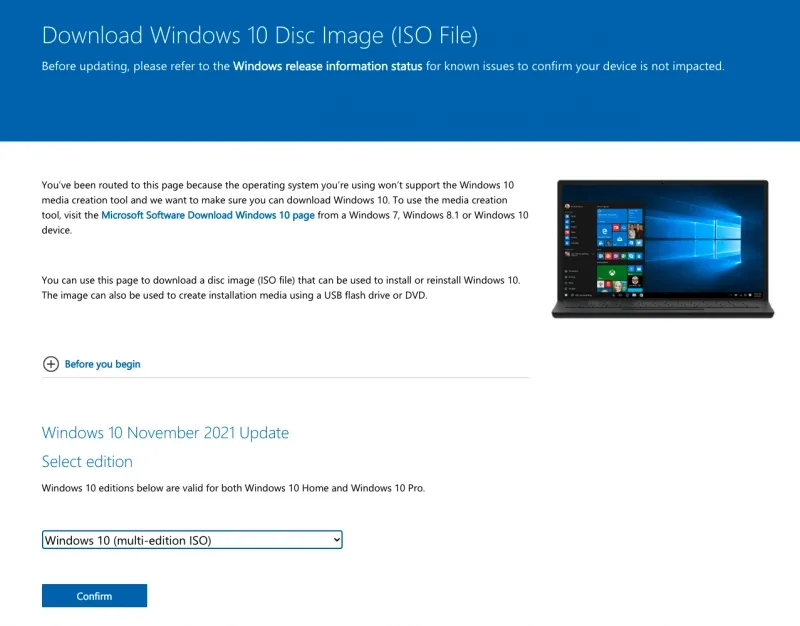
I also created a Windows 10 installation medium on a USB stick, because during my initial research I came across the fact that this is required. The official Windows 10 download can be found in the sources at the end of the article. To create the stick we naturally need a second machine somewhere that we have access to. The downloaded ISO file can be transferred to the stick differently depending on the operating system. Google helps.
Procedure
The following step-by-step guide outlines the procedure tested as working to reset the password of a local Windows 10 user.
-
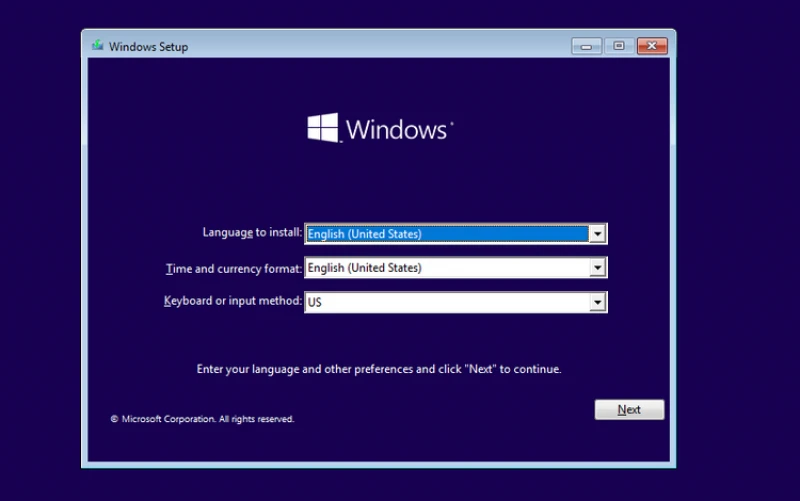
First we boot from the boot stick we created earlier.
-
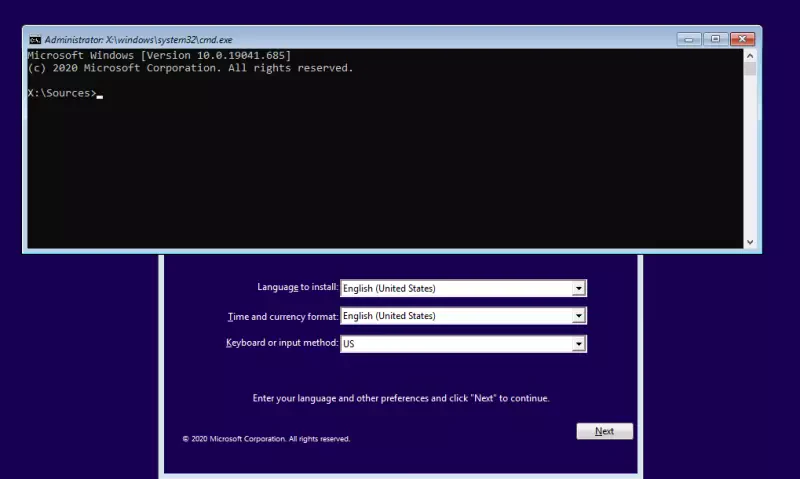
In the first dialog window (language selection etc.) we press the SHIFT + F10 keys simultaneously.
-
In the command line that then appears (oh wow; that should actually not work at all) we switch to the partition of our local Windows 10 installation, e.g. with the command "C:".
-
Now we "wrench" ourselves into the local system directory. That works, for example, with the commands: "cd Windows", Enter key, then "cd system32", Enter key.
-
Now we create our "magic door" so that later, on a normal boot, we can also switch to the command line. With "cp utilman.exe utilman_old.exe" we first back up the accessibility assistant so we can restore it later.
-
With "copy cmd.exe utilman.exe" we create a copy of the command-line program under the name of the accessibility assistant.
-
That was the first trick. We can now close the Windows installation routine and boot the machine normally again.
-
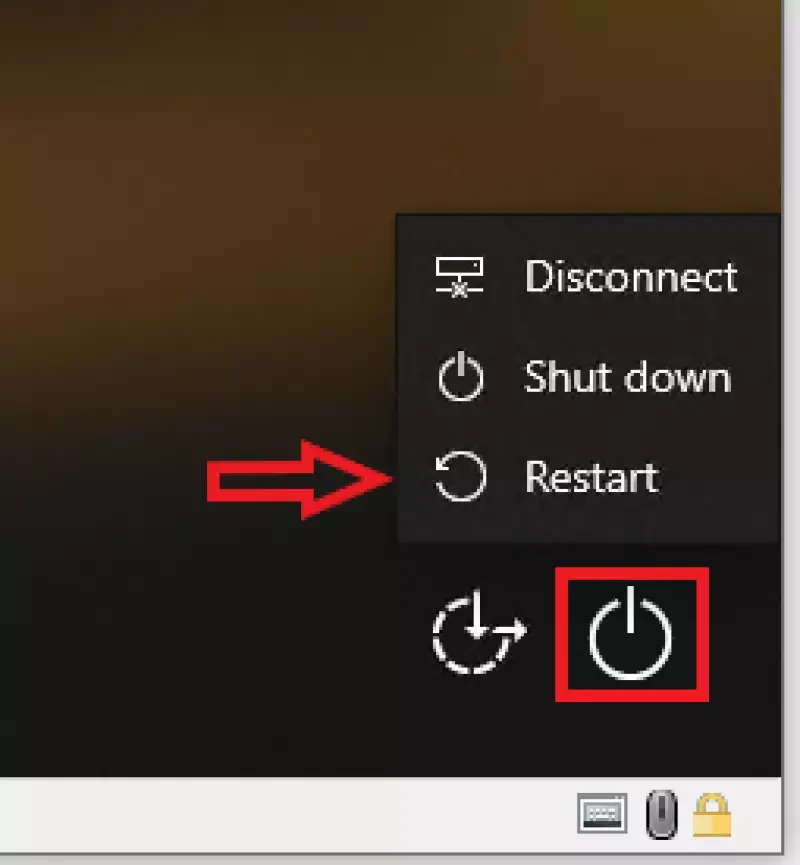
We have to force a reboot into safe mode on the login screen, since at least for me command-line invocations were otherwise blocked (probably by the system protection program running in the background). So hold down the "SHIFT" key, press the power symbol at the bottom right and select Restart.
-
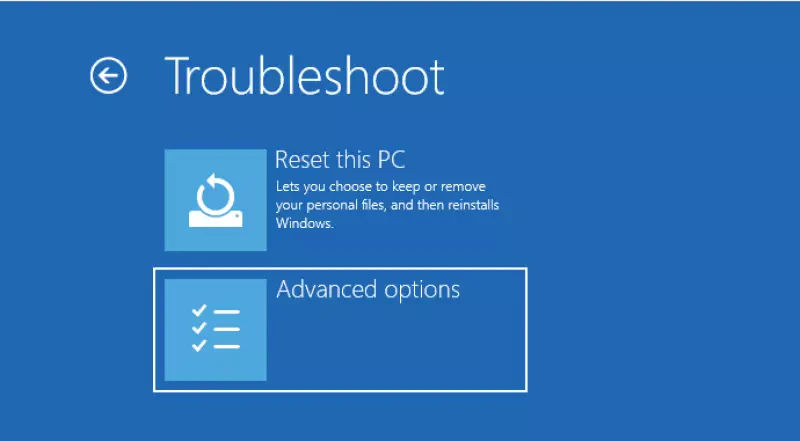
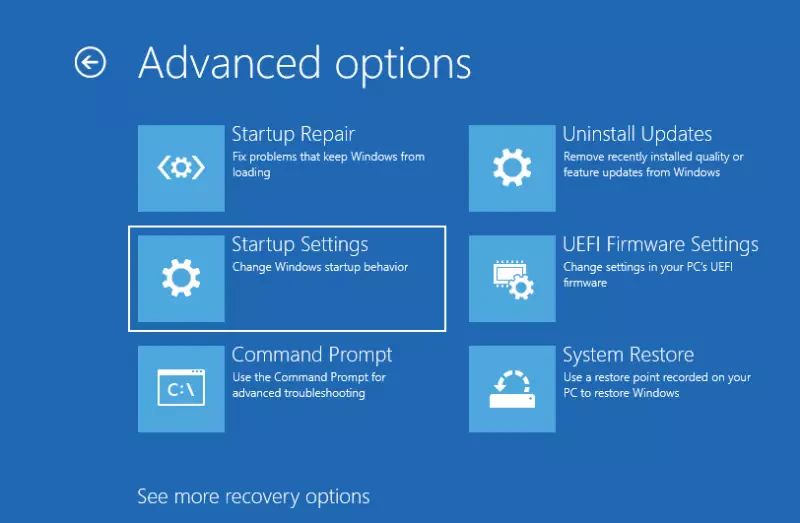
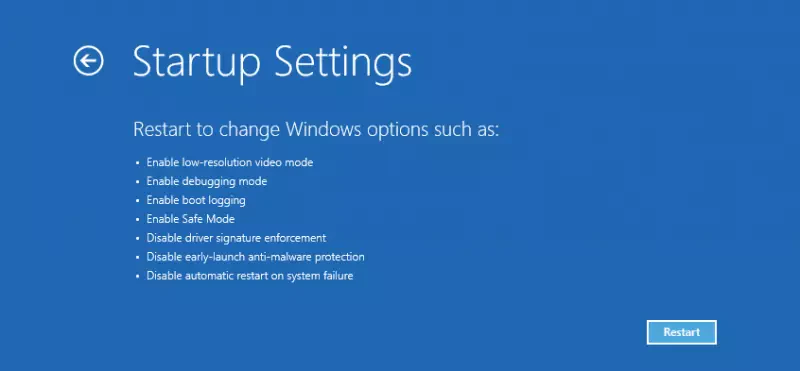
In the interim dialog that appears after a short time we choose "Advanced Options" and then "Startup Settings". Now click on "Restart". (Sorry, I only have English screenshots right now.)
-
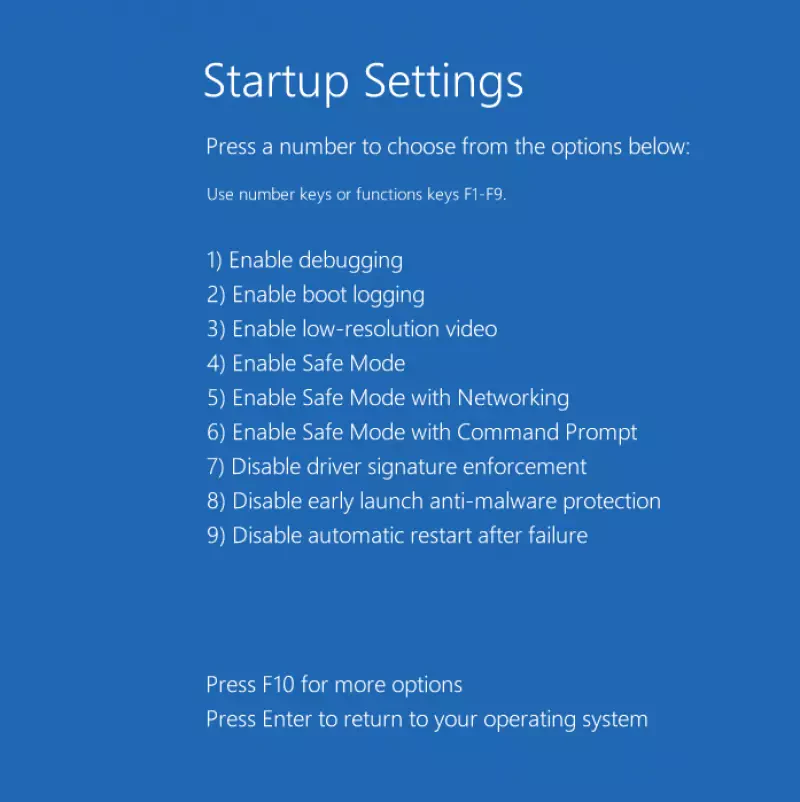
Once the machine is up again, we press key 6 to start safe mode with command line.
-
Unfortunately the command line does not start directly, since we are first asked to enter our password (haha), but the trick we enabled through step 6 can now be executed: we click on the accessibility icon (the second icon bottom right), and voilà: the command line opens – this time with full privileges!
-
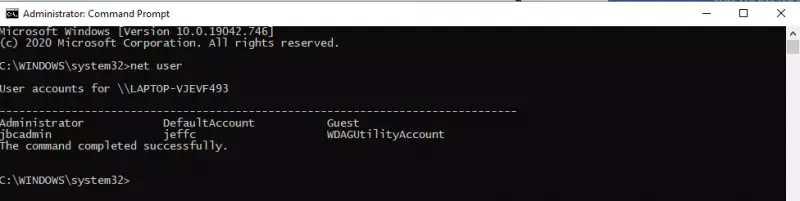
By entering the command "net user" we get a list of all local user accounts displayed. I seem to be missing the know-how here, but the user account I am actually after is not displayed at all?! Never mind: we simply reactivate the existing "Administrator" user account and continue working with it. How? Next step:
-
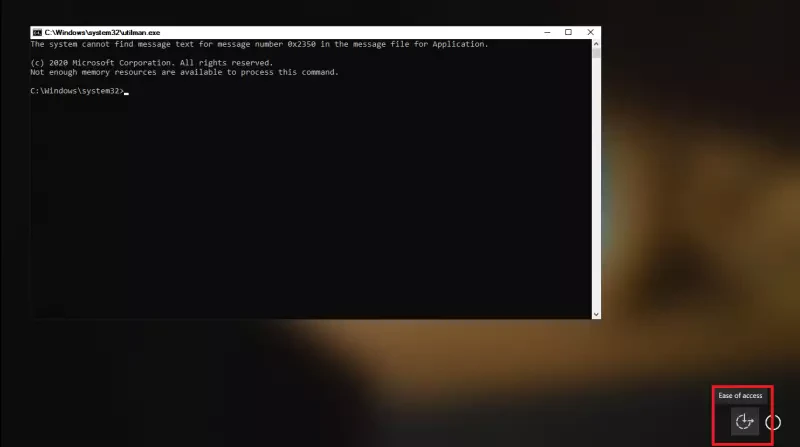
The command "net user Administrator /active:yes" activates the account, and the command "net user Administrator PASSWORD" sets PASSWORD for it. (With adjusted commands, a completely new user can naturally also be set up as admin this way, in case the user "Administrator" is not available.)
-
Because it's so nice: time for a reboot.
-
At the bottom left of the login screen we now see several users to choose from, including the "Administrator" we just activated. We click on it and then log in to the system as this user, with the password we set beforehand.
-
After leaving the Windows "first-setup hell" behind us, we now see a more or less tidy desktop and have successfully logged in with administrator privileges!
-
Now we can comfortably change the password of our actual user via Control Panel → Users → Other accounts – and yes, restart the PC.
-
Done: now we can select our actual user again on the Windows login screen and log in with the newly set password.
Cleaning up
We undo the tracks we left with the following commands in the Windows command line:
net user administrator /active:no– we deactivate the "Administrator" user again; we don't need it anymore.C:,cd Windows,cd system32,del utilman.exe,copy utilman_old.exe utilman.exe– restore the system files to their original state.
Conclusion
To avoid the posed problem from the outset, one could e.g. create a Microsoft account (if you trust the company) and link the account to it. Then resetting is possibly possible online, provided the affected PC has an internet connection.
You can also work with shorter PINs, which Microsoft has provided for some time for logging in – alongside the further option of a reminder phrase.
Nevertheless (yes, that's apparently how it's spelled): with the described procedure you can not only reset a forgotten Windows password, but also obtain access to any Windows 10 PC you have physical access to. A glaring security hole that is better "patched" in other operating systems like Linux and MacOS.
Well, at least I could help my friend this way 🙂
All's well that ends well? How can I protect myself against such an "attack"?
Actually the described scenario should not work at all, because this way anyone can gain administrative access to a Windows PC.
The cause is a chain of circumstances that opens this security hole for us. To prevent such an attack, simply switching to a Microsoft online account is not enough. Anyone can still gain administrative system access via a new user account once they have physical access to the machine.
Preventing such an attack is not trivial, because the following would have to be done in combination:
- Setting a password at the BIOS level: prevents booting from another boot medium and similar. Many will not want to do this out of convenience.
- Enabling disk encryption, e.g. with BitLocker: otherwise you could simply unscrew/desolder the hard drive from the machine and read its contents elsewhere. Con: that makes the Windows PC (even) slower.
Microsoft itself could in turn improve things by, in Windows:
- blocking access to the command line during the installation routine. Presumably that is not so easy to implement, since the command line may also be needed here and there for special cases.
- checking the signatures of system files that are executed before a successful login. That should definitely be implementable, and it is surprising that Microsoft has not been doing it for a long time already. Under Linux there have been implementations for years, e.g. SELinux.
Sources
- https://adamtheautomator.com/reset-windows-10-password-command-prompt/ – did not work, but useful tips on understanding the process
- https://www.avast.com/c-recover-windows-password#gref – did not work, but likewise useful tips on understanding the process
- https://www.makeuseof.com/tag/3-ways-to-reset-the-forgotten-windows-administrator-password/ – also did not work, even more useful tips on understanding the process
- https://www.sony.com/electronics/support/articles/00123047 – how to activate a disabled Windows account from the command line
- https://www.microsoft.com/en-us/software-download/windows10ISO – Windows 10 ISO download