If someday, just like me, you have had enough of MS Windows and Apple macOS, Linux remains the most popular and meanwhile absolutely competitive alternative. And already you stand in front of the next decision: which Linux may it be? But what would it be if one could simply run \"every\" kind of Linux at once? Exactly that is what Distrobox promises. This post briefly goes into the differences between Linux kernel, distribution and derivation and then shows how one installs and configures Distrobox.
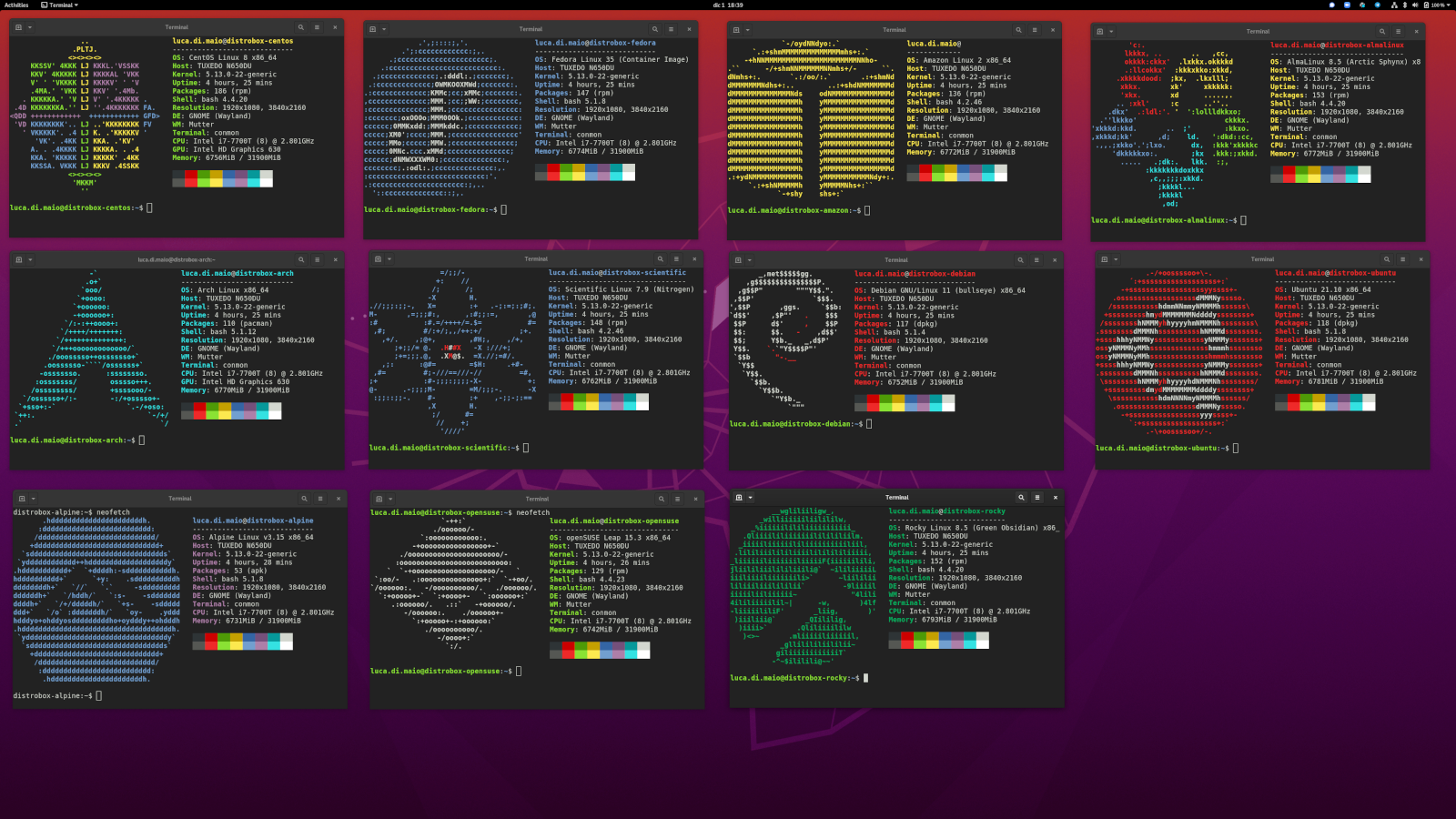
Kernel, distribution and derivation
Here the differences briefly explained, which helps to understand the rest of the article better (source: GPT-4o mini, prompt: \"What is the difference in Linux between: kernel, distribution and derivation?\", date: 27.03.2025).
Kernel
The kernel is the central component of an operating system. It is the interface between the hardware and the software and manages the system resources such as CPU, memory and devices. The Linux kernel is the core of the Linux operating system and is constantly further developed. It is responsible for the execution of processes, the management of memory and the communication with hardware components.
Distribution
A Linux distribution is a complete collection of software that is based on the Linux kernel. It comprises the kernel itself as well as a multitude of software packages that are required for the use of the system, such as e.g. desktop environments, application software, system tools and drivers. Examples of popular Linux distributions are:
- Ubuntu,
- Fedora,
- Debian,
- Arch Linux.
Each distribution has its own characteristics, package management systems and target groups.
Derivation
Derivation (or derived distribution) refers to a distribution that is based on another distribution. It uses the kernel and the software packages of the original distribution, but adds own adjustments, additional software or specific configurations. An example of a derivation is Linux Mint, which is based on Ubuntu but offers a different user interface and additional functions. Derivations can often be regarded as more user-friendly or more specialized, since they build on the strengths of the base distribution.
And why Distrobox now?
Using Distrobox can be useful or even sensible for several reasons:
- I use distribution X, but know myself better in distribution Y. Some tools in the Linux world are aimed at a particular Linux distribution. A prominent example of this are the package managers. In Fedora and co.
dnfhas established itself there, while under Ubuntu and co.aptis common. With Distrobox you can simply use both. - Your desired app exists only for distribution Y, but you use distribution X. Then just install it via Distrobox 😊.
- Ein Container oder gar eine VM wäre mit „Kanonen auf Spatzen“ geschossen. Zum Ausprobieren empfiehlt es sich nach wie vor eher, mit einer vollständigen Container-Management-Software wie Docker zu arbeiten, aber eine tiefgehende Integration in dein Betriebssystem lässt sich einfacher mit Distrobox umsetzen.
- Because it is funny. Yes, at least I find it funny to see, even on a desktop, that all Linux distributions are based on the same kernel and in the end merely represent a scaffolding.
Installation of Distrobox
The installation packages for Distrobox are meanwhile integrated in all large distributions and represent the simplest variant of installing Distrobox. You can perform the installation itself either via the graphical interface of your package management or as follows via the command line.
For Fedora / CentOS / RedHat:
sudo dnf install distrobox For Debian / Ubuntu:
sudo apt-get install distroboxAlternatively, e.g. if you use a distribution that offers only an older version of Distrobox, you can also start the installation with:
curl -s https://raw.githubusercontent.com/89luca89/distrobox/main/install | sudo sh. But then remember that you are yourself responsible for updates (which you simply start by a renewed call of the previously mentioned command).
Creating a new container
Creating containers proceeds with a simple command on the command line, e.g. like this:
distrobox create --name ubuntu_container --image ubuntu:latestIn this case a new container with the name ubuntu_container and the newest Ubuntu version would be created.
Switching back and forth between the containers
To enter a container such as the ubuntu_container created in the previous example, one executes the following command:
distrobox enter ubuntu_containerTo leave a container again, a simple suffices
exitRemember to leave the container first before you jump into another one.
Further useful commands
You can have all existing containers displayed with the following command:
distrobox listA running container like our ubuntu_container you can stop with the following command:
distrobox stop ubuntu_containerUnd um einen Container komplett zu löschen, benötigen wir folgendes Kommando
distrobox rm ubuntu_containerConclusion
Distrobox makes it maximally easy to jump back and forth between different Linux distributions without having to create a dual-boot installation, a virtual machine or Docker/Podman containers. That even still makes sense if e.g. you have already installed Docker, because the images available there are in general intended for server systems and therefore are not really fit for interactive use.
Bonus tip
Wenn du beim Betreten der Shell-Kommandozeile auch ein cooles OS-Logo mit Systeminformationen sehen willst: Das geht mit neofetch. Das Paket kann über alle gängigen Paketmanager installiert werden und heißt, rate mal, neofetch. Für einen automatischen Start nach der Installation einfach neofetch ans Ende eurer ~/.bashrc oder ~/.zshrc setzen.